
What Is Print Preview and How to Use It Right
WallfullyTL;DR:
- Print preview provides an accurate view of how a document will print, highlighting layout errors and saving resources. It applies printer-specific settings to ensure content fits and appears correctly before hardware output. Using print preview as a final check improves professionalism, reduces waste, and prevents costly printing mistakes.
Most people glance at print preview for two seconds and click print anyway. That habit costs more than you think. Print preview is not just a static snapshot of your document. It is the final checkpoint where layout errors, misaligned margins, cut-off charts, and rogue blank pages reveal themselves before a single sheet of paper is wasted. Understanding what print preview actually does, and how to use it deliberately, can change the quality and accuracy of everything you print.
Table of Contents
- Key takeaways
- What is print preview and how it works
- The real benefits of using print preview
- Print preview across different software platforms
- How to access and use print preview effectively
- Advanced print preview capabilities worth knowing
- My take on why print preview still matters
- Make every print count with Wallfully
- FAQ
Key takeaways
| Point | Details |
|---|---|
| Print preview shows true output | It applies printer-specific settings so you see exactly what will print, not just how it looks on screen. |
| It differs from Print Layout view | Print Layout is for editing; print preview is for final verification before you send the job to the printer. |
| It saves paper and ink | Catching errors before printing prevents wasteful reprints, especially in high-volume document environments. |
| Interactive tools exist | Many applications let you adjust margins, page breaks, and zoom directly inside the preview window. |
| Skipping it has real costs | Even documents that look perfect on screen can have print-specific layout issues only visible in preview. |
What is print preview and how it works
Print preview displays an accurate on-screen approximation of exactly what your document will look like when it comes out of the printer. It is not a rough estimate. It applies the actual printer settings you have selected, including paper size, orientation, margins, headers, footers, and page breaks, before a single page prints.
Here is where most users get confused. The document you see while editing, even in Print Layout mode in a word processor, is not the same as print preview. Print Layout shows you a desktop-friendly version of your document formatted for the page. Print preview applies printer-specific configurations on top of that. Those two views can look very different depending on your printer driver, paper size selection, or scaling settings.
What print preview typically shows you:
- Page breaks: Where content splits across pages, including problematic mid-sentence or mid-table breaks
- Margins: The actual white space around your content based on your current printer settings
- Headers and footers: Whether they appear correctly on every page, including the first and last
- Scaling and fit: Whether your content is being scaled to fit the paper or getting cut off at the edges
- Blank pages: Rogue empty pages caused by extra paragraph returns or section breaks
“Print preview is the only reliable way to confirm all print-specific settings apply before printing.” — Lenovo
This applies across software types. In a word processor like Microsoft Word, print preview shows your full formatted document with all styles applied. In a spreadsheet application, it reveals which cells and charts fall on which pages. In a PDF reader, it confirms page sizing and any annotations you have included.
The real benefits of using print preview
The most obvious benefit is catching mistakes before they cost you paper and ink. But the impact goes deeper than that.
Previewing a print on screen helps you avoid wasting paper and ink on bad prints, and in high-volume office environments this adds up quickly. Think about a 40-page report where the header is missing on every page except the first, or a spreadsheet where a key chart is split awkwardly across two pages. Neither of those problems is obvious while you are editing. Both are immediately visible in print preview.
Here are the most common printing issues that print preview catches before they happen:
- Cut-off content: Text or images that fall outside the printable area of the page.
- Misaligned headers and footers: Page numbers that disappear on certain pages or appear in the wrong position.
- Unwanted blank pages: An extra page at the end of a document caused by a stray paragraph mark.
- Chart and table splits: A chart that looks fine on screen but prints across two pages in a way that makes it unreadable.
- Incorrect scaling: Content that is either too small to read or too large to fit, depending on your printer’s paper tray settings.
Print preview reduces costly misprints and material waste by functioning as a final error-checking step. In professional environments where documents go to external print shops or large-format printers, catching a layout error in preview versus after the fact is the difference between a small fix and a costly reprint.
Pro Tip: Before printing any document longer than three pages, flip through every page in print preview, not just the first one. Problems almost always hide on the last page or in the middle of a long document.

The professional appearance benefit deserves more credit, too. A document with consistent margins, correctly placed page numbers, and properly scaled content reads as more polished and credible. Print preview is how you get there without guesswork.
Print preview across different software platforms
The print preview feature exists in nearly every application that handles printable documents, but it behaves differently depending on the software. Understanding those differences helps you get the most out of each one.
| Application | Preview access | Interactive features | Key strengths |
|---|---|---|---|
| Microsoft Word | File > Print | Zoom, page navigation | Shows styles, headers, footers accurately |
| Microsoft Excel | File > Print | Margin dragging, page break adjustment | Reveals how spreadsheet data splits across pages |
| Google Docs | File > Print | Zoom, basic page view | Clean and fast for simple documents |
| PDF readers (Adobe, etc.) | Print dialog | Zoom, fit-to-page options | Confirms exact page sizing and annotations |
| Web browsers | Ctrl+P | Page range, scale options | Shows how web content adapts to paper format |
Microsoft Word’s print preview is thorough and reliable. It shows you the document exactly as it will print, with all formatting intact. However, it is primarily a viewing tool. You cannot edit content directly inside Word’s modern print preview window.
Excel is a different story. Some spreadsheets allow users to interactively adjust margins and page breaks within print preview, which recalculates the page layout in real time. In Excel, you can drag margin lines to instantly shift how content sits on the page without closing the preview window. This makes Excel’s print preview a genuinely functional workspace rather than a passive display.
Users often confuse Print Layout with Print Preview, though the former is for editing and the latter is for final output verification. Print Layout in Word is your day-to-day editing view. Print preview is what you check right before you send the document to print. They can look identical for simple documents but will diverge significantly when printer settings, custom paper sizes, or scaling come into play.
Print preview in web browsers is particularly underused. When you press Ctrl+P on a web page, you often see how the page will collapse or reformat for paper. Most people dismiss that view immediately. But if you are printing a recipe, a confirmation email, or a web-based report, adjusting the scale or checking the page count in browser print preview can save you from printing three pages when you only needed one.
How to access and use print preview effectively
Getting into print preview is straightforward in most applications. The challenge is actually using it well once you are there.
Common ways to open print preview:
- Ctrl+P (or Cmd+P on Mac): Opens the print dialog in most applications, with a preview panel on the right or in a separate window
- File > Print: The standard menu path across Word, Excel, Google Docs, and most desktop applications
- Quick Access Toolbar: In older versions of Microsoft Office, you can add a print preview button to your toolbar for one-click access
- Print Preview button in browser print dialogs: Appears automatically when you trigger print in Chrome, Firefox, or Edge
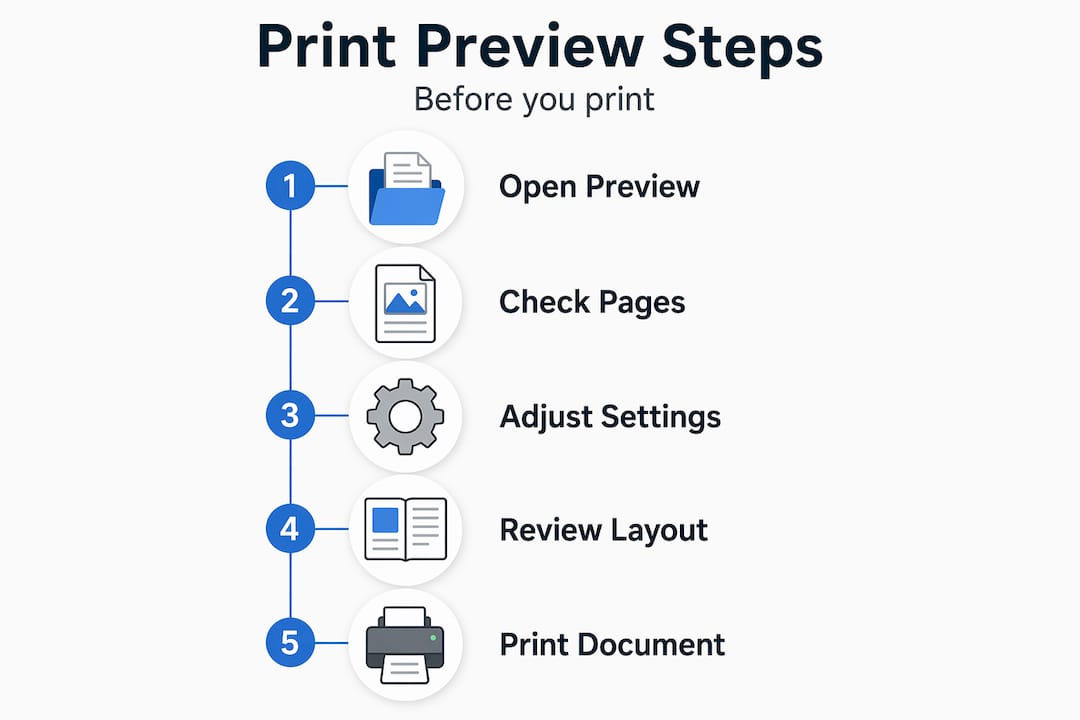
Once you are inside print preview, most users zoom in, see the document looks roughly right, and close the window. That is the wrong approach. Here is how to actually use it:
Start by checking the total page count shown in the preview. If it is higher than you expected, scan through every page to find where the overflow is coming from. Then zoom in on the first and last pages specifically, since header and footer issues concentrate there. For spreadsheets, look at where your data tables and charts land across pages.
Print preview windows often include navigation tools like zoom sliders, page navigation buttons, and toggle views. Use the zoom slider to inspect fine details like font size, alignment, and whether your margins give the content enough breathing room. Switch to a multi-page view if available, since seeing several pages at once reveals inconsistencies that are invisible when viewing one page at a time.
Pro Tip: In Microsoft Excel, click “Show Margins” inside print preview to make the margin lines draggable. Pull them inward slightly to fit more data on fewer pages without changing your actual document settings.
What most users miss is the page break preview option in Excel, which is technically separate from print preview but works in tandem with it. You can set your page breaks in that mode and then verify the result immediately in print preview. The back-and-forth takes thirty seconds and prevents the most common spreadsheet printing frustration.
Advanced print preview capabilities worth knowing
Print preview does more than most users realize. Several applications extend it into a light editing environment, which can save time when you catch a small issue right before printing.
Some applications allow minor text edits and formatting changes directly within print preview using tools like a magnifying glass icon or an edit mode toggle. In older versions of Microsoft Word, print preview had a full toolbar that let you edit text, adjust font sizes, and tweak paragraph spacing without returning to the editing view. This made final polishing faster, especially for long documents.
Other advanced capabilities worth knowing:
- Shrink to fit: Word’s print preview has a “Shrink One Page” option that automatically reduces font sizes slightly to eliminate a short overflow page.
- Margin dragging in Excel: In Excel, the print preview mode allows dragging margin lines to instantly adjust page layout, recalculating how content fits without leaving preview mode.
- Multiple-page display: Viewing four or more pages simultaneously reveals formatting inconsistencies across a long document at a glance.
- Print range selection: Most print preview dialogs let you select specific page ranges, which is useful for reprinting just the pages that had errors.
Advanced users leverage print preview’s capability to make minor text edits directly from the preview window, accelerating final document polishing. If your software supports this, use it. Fixing a widowed headline or an orphaned line directly in preview is faster than closing, editing, reopening, and checking again.
Mastering print preview is key to ensuring professional, polished printouts and avoiding issues like awkward page breaks or cut-off content. These are not minor cosmetic concerns. They affect whether your document communicates what you intended.
My take on why print preview still matters
I have seen more printing disasters than I care to count, and almost every one of them had the same cause: someone skipped print preview. A 200-page annual report with the company logo cut off on every page. A contract where the signature line landed at the top of a blank page instead of below the final clause. A spreadsheet where a financial summary chart printed across two pages in a way that made the numbers unreadable.
What strikes me every time is that print preview acts as a dress rehearsal, revealing how content actually fits physical pages and preventing exactly these kinds of errors. The frustrating part is that each of these errors would have taken fifteen seconds to catch in preview.
I think people underestimate print preview because it feels passive. You are just looking at something. But that act of looking, done deliberately, is where accuracy gets built. Print preview serves as a connection point between digital document editing and physical print realities, and that connection matters more as documents get more complex.
My advice is simple. Treat print preview as a non-negotiable step, not an optional one. Make it the last thing you do before every print job. The ten seconds it takes pays for itself the first time it catches a problem.
— Luanda
Make every print count with Wallfully
When you are creating a personalized print, whether it is a custom map, a song lyric poster, or a milestone date print, what you see before it ships should match exactly what arrives at your door.
At Wallfully, every customized order goes through a live design preview so you can verify your text, layout, and colors before the print is produced. No surprises, no reprints, no guesswork. You can also read about achieving gallery-worthy photo print quality to understand what separates a great print from a forgettable one. If you are ready to create something worth hanging on a wall, explore Wallfully’s full collection and start designing today.
FAQ
What does print preview do exactly?
Print preview shows you an on-screen representation of your document as it will look when printed, including all printer-specific settings like margins, page breaks, headers, and footers. It lets you catch layout errors before printing.
How do I open print preview in most applications?
Press Ctrl+P (or Cmd+P on Mac) or go to File > Print in most applications. The preview panel appears automatically in the print dialog window.
Why is print preview not showing correctly?
Print preview not showing correctly is usually caused by an outdated or misconfigured printer driver, an incorrect paper size selection, or display scaling settings on your monitor. Updating your printer driver or switching the selected printer in the dialog often resolves it.
What is the difference between Print Layout and print preview?
Print Layout is an editing view that approximates how your document looks on a page. Print preview applies the actual printer settings and shows the true final output, which can differ significantly from what you see while editing.
Can you edit a document in print preview?
In some applications, yes. Older versions of Microsoft Word and certain other programs allow minor text edits and formatting adjustments directly within the print preview window, which speeds up final document polishing before printing.